
How to Join Google Meets for the First Time on Desktop
A step-by-step guide to joining a Google Meet call for the first time on desktop, from clicking the link to allowing camera and microphone access.
If you haven’t used Google Meet before (or you are using a new computer) you may need a few extra steps to get started. While it shouldn’t take long, we recommend you complete the steps below a 3 to 5 minutes before the call, just in case you run into any isssues.
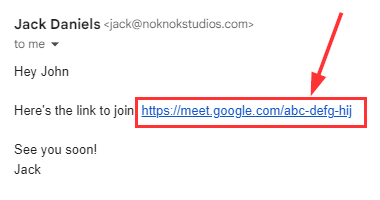
1. Locate and Click the Google Meet Link
Your organiser will provide you with a link or code for the meeting (see below for example). Click this link to open the Google Meets page.
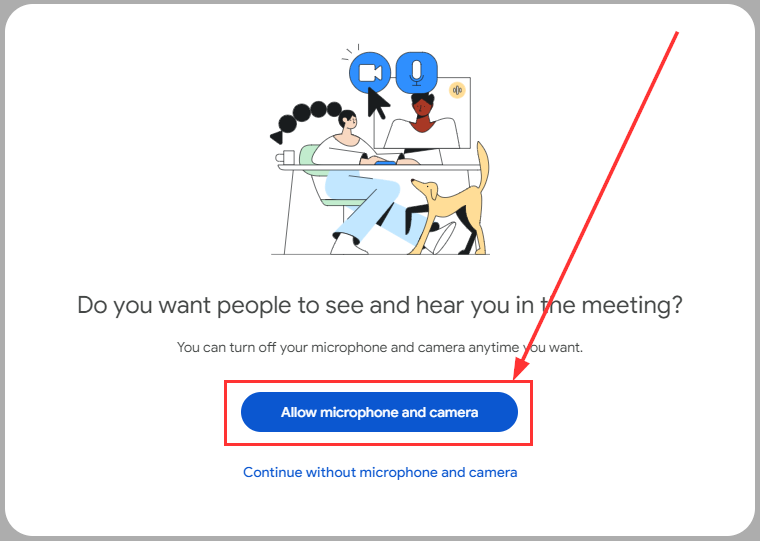
2. Allow Microphone / Camera Access (Part 1)
If you haven’t already, you’ll need to give permission for Google Meets to access your camera and micrphone.
Note: While you don’t need a camera to join the call, you will need a microphone.
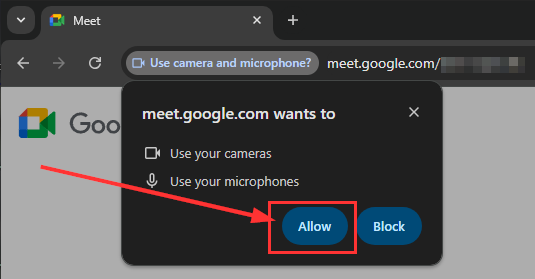
3. Allow Microphone / Camera Access (Part 2)
Click “Allow” on the popup that appears in the top right hand corner of your screen.
4. Enter your Name
Enter your name in the appropriate field.
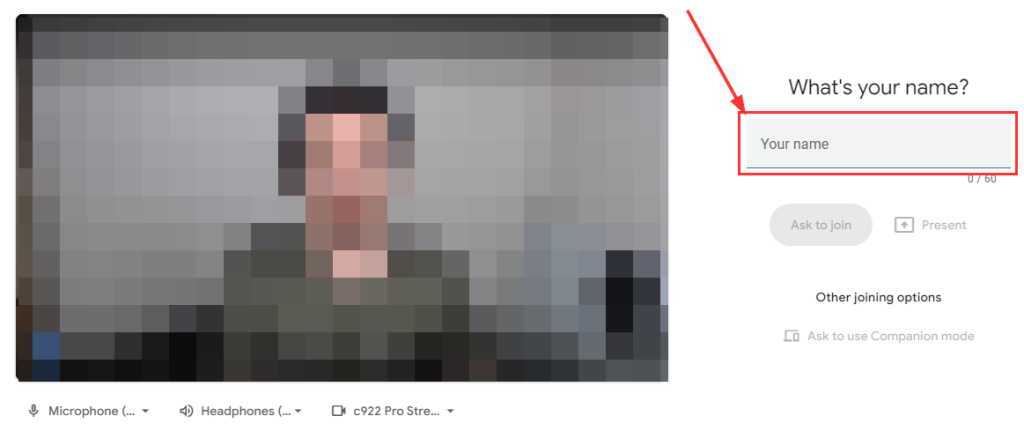
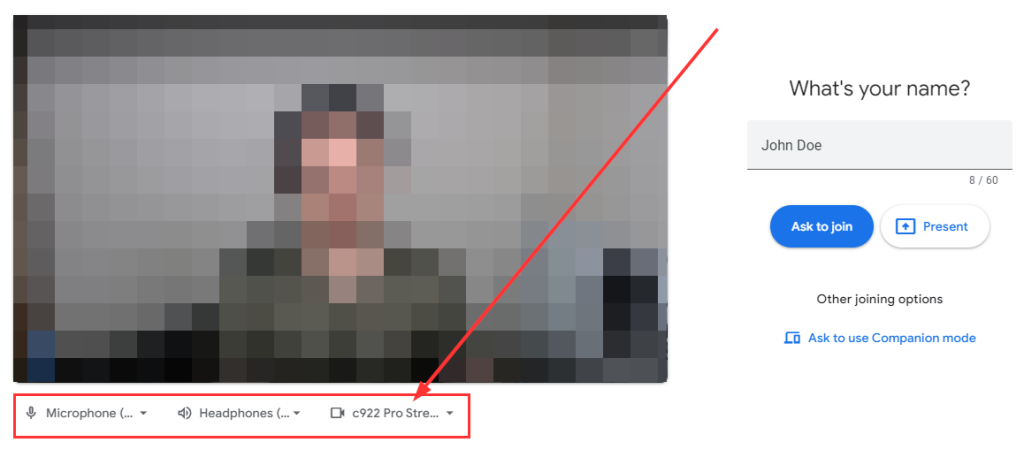
5. Adjust your Microphone, Speaker and/or Video Settings
If needed, you can test and adjust the settings of your Microphone, Speaker or Camera.
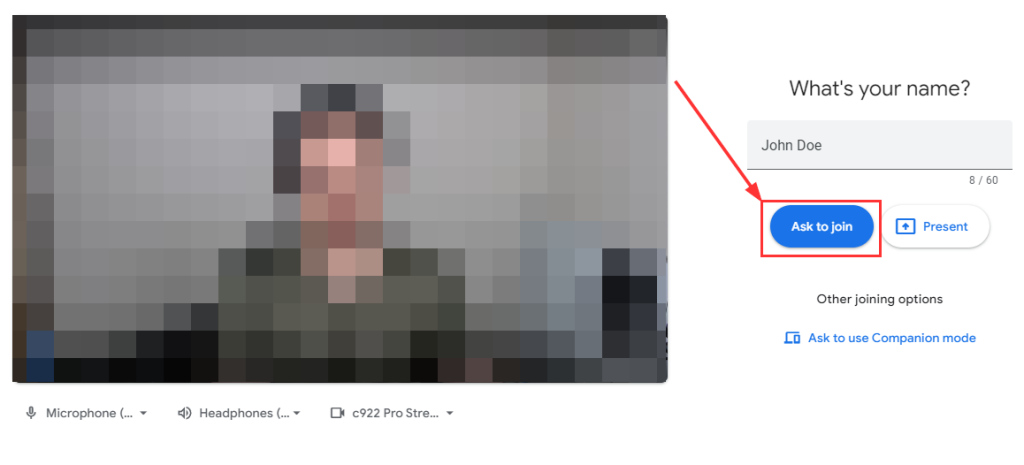
6. Join the Call
When you’re ready, click Join now or Ask to Join
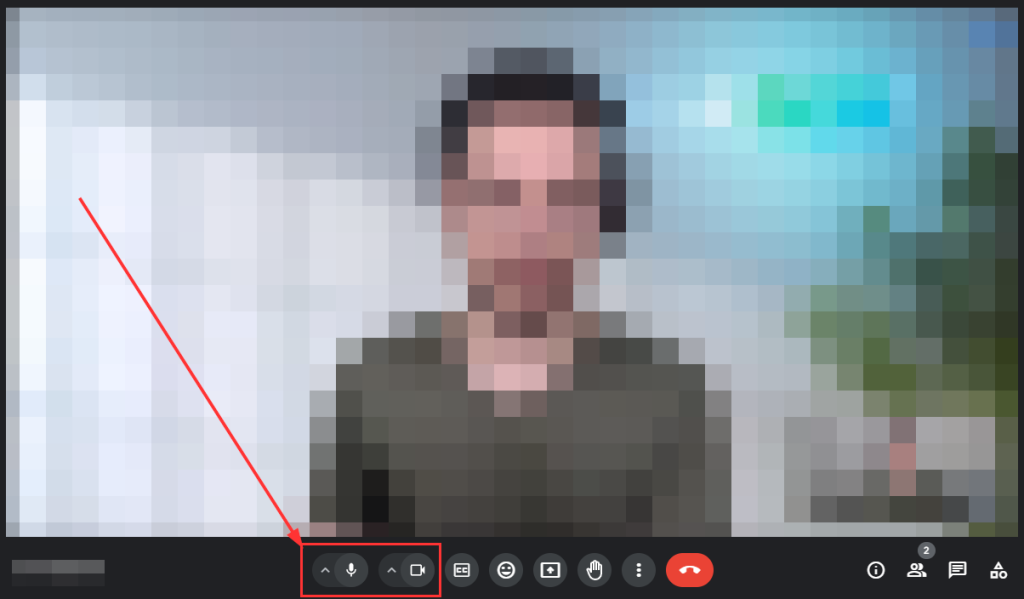
7. Adjust Settings (if needed)
If you join the call and find your audio or video settings are still not perfect, you can adjust them using the microphone and camera settings at the bottom of the screen.
Thinking about a new website?
We plan, write, design and build complete websites for established businesses.
Get started